
Read It Later App
to use the web for better you
Save articles that caught your interest. Read & Listen the moment you want.
Designed to read more and complete your reading list.


No Ads. No Tracking.

Read Comfortably
Strips off the clutter from web pages for an enjoyable reading.
Read even offline
Automatically downloads articles to your phone. Read whenever you need.
Listen to your articles
Read to you while you walk, cook, or working out. Make best use of your time.
From Anywhere
Available for free on iPhone, iPad, Android, and Web.
Auto Categories
Choose a category matching your mood. Health? Technology? may be Arts? Pick what interests you at the moment. You don't have to assign the category in advance, app does this automatically for you.
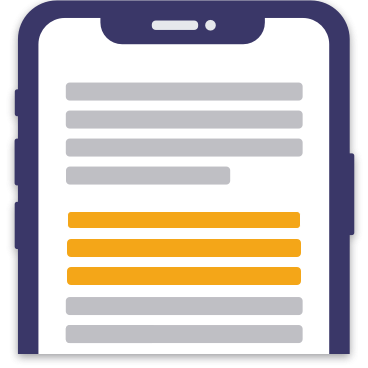
Highlight your way
Mark key text as you read. Review or share later when you need it. Make yourself easy to remember or recap what's important to you.

Listen
Let the app read articles to you while you walk, cook, commute or working out - even while offline.
You don't have to trade your productive time for your web reading.
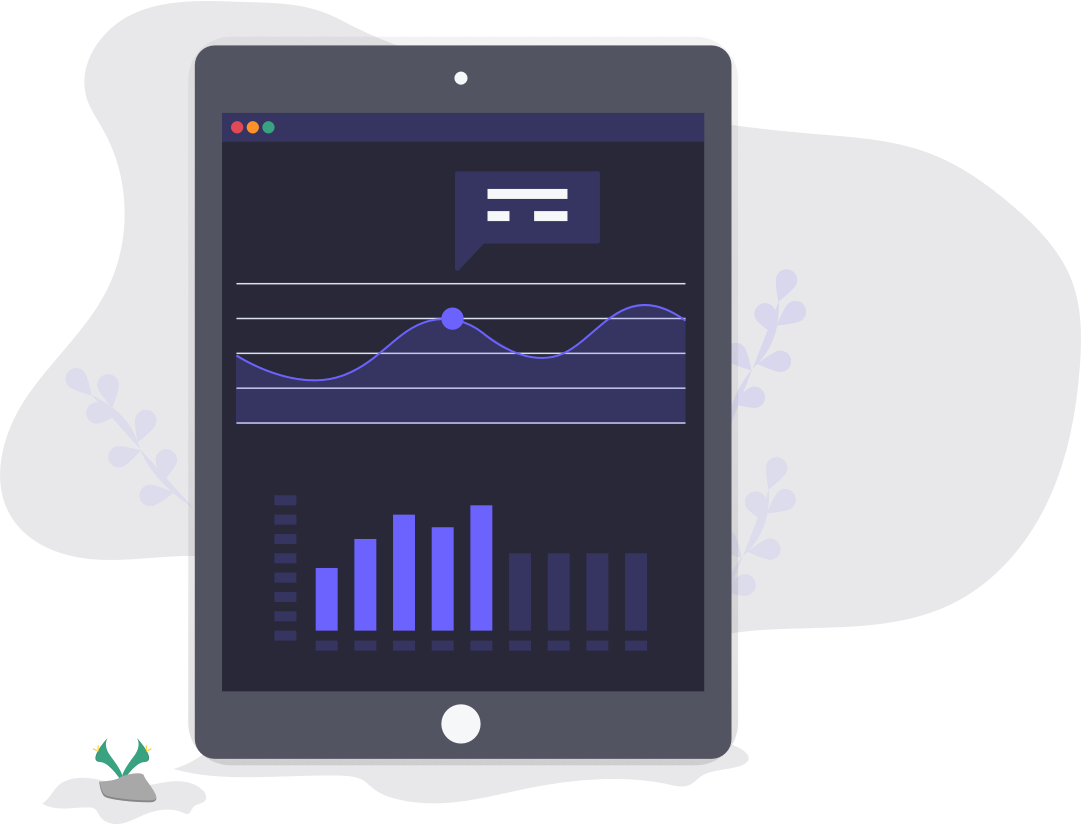
Reading progress
Get insights into your reading routine. Your read rate, peak reading time, categories you read, your popular sites & more to help plan and enhance your reading.
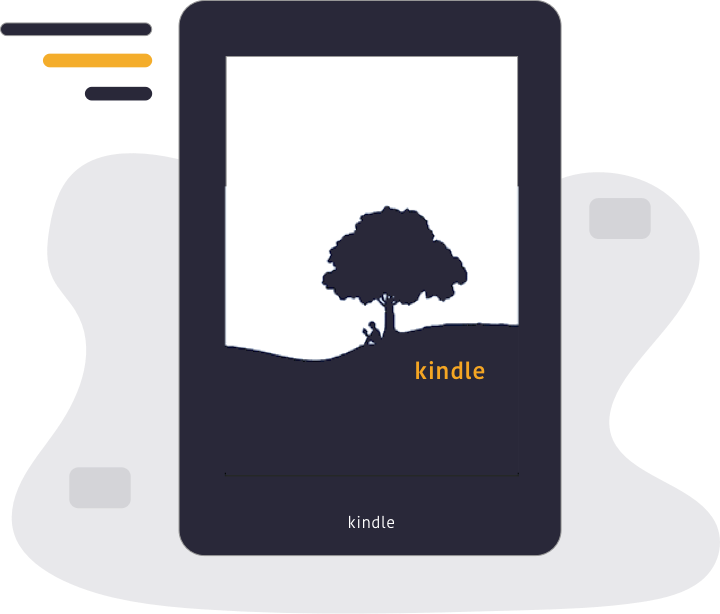
Send to Kindle
Love the Kindle reading experience? Send articles to your Kindle device (or app) as a book, carefully crafted. Read them at your own pace.

Folders
Group and organize with folders and have them across devices. Save directly to a folder with PaperSpan browser extensions.
Search & Filters
Pull out an article with what you remember. Site, title, author, notes & more!
Start reading the article you have in mind.

Notes
Jote down the gist out of an article you just read. Summary of lessons learnt, thoughts you got out of an article.
Playlist
Let the app read articles to you with no interruption in between. Perfect while you walk, drive, or doing daily chores.
Anywhere
PaperSpan works seamlessly across all major devices to keep your reading in sync.
Available for free on iPhone, iPad, Android and Web.
Contact Us
If you have questions or encounter problems with your account or PaperSpan service, feel free to message us.
You can also mail us at support@paperspan.com
Follow us on Twitter for latest news and updates.